
If you’re trying to figure out whether Google has indexed your page or website, you’ve come to the right place. We’ve fully updated this guide for 2026, because a few of the methods we originally recommended (looking at you, cache: operator) no longer exist — and a few new realities, like AI Overviews, have made indexing more important than ever. Below are the methods we actually use today, in the order we’d reach for them.
In this guide
- Why Indexing Matters More Than Ever in 2026
- Method 1: The site: Search Operator (Quick, but With Caveats)
- Method 2: The URL Inspection Tool in Google Search Console
- Method 3: The Pages (Indexing) Report for Your Whole Site
- Method 4: Check Your Sitemap Submission
- What About the cache: Operator and Copy-Paste Tricks?
- Wrapping Up
Why Indexing Matters More Than Ever in 2026

Quick refresher: Google can’t rank a page it hasn’t indexed. Indexing is the step where Google stores your page in its giant database after crawling it. No index entry, no rankings, no traffic — simple as that.
What’s changed by 2026 is that indexing is now table-stakes for more than just the classic blue links. AI Overviews and AI Mode answers in Google Search are built on top of Google’s index — if your page isn’t indexed, it can’t be cited or summarized in those AI answers either. So checking your indexation status isn’t an old-school SEO chore anymore; it’s the entry ticket to every surface Google offers.
Method 1: The site: Search Operator (Quick, but With Caveats)
This is still the fastest gut-check, and it works the same way it always has:
- Go to Google and type site:yourdomain.com to see pages Google has indexed from your site.
- To check one specific page, search site:yourdomain.com/your-page-url/ — if it shows up, it’s indexed.
Now, the caveats — and in 2026 these matter. Google has been clear that the site: operator is not exhaustive: it won’t necessarily show every indexed page, the result count is a rough estimate at best, and a page occasionally fails to appear here even when it is indexed. Treat site: as a quick smoke test, not a verdict. For the real answer, use the next method.
Method 2: The URL Inspection Tool in Google Search Console
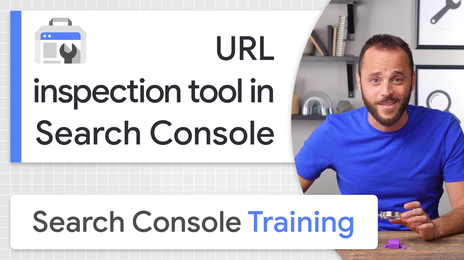
This is the definitive way to check a single URL, straight from the source. If you haven’t set up Google Search Console for your site yet, do that first — it’s free, and it’s the single most useful tool a site owner has.
- Open Search Console and paste your full URL into the inspection bar at the top.
- Google will tell you plainly: “URL is on Google” (indexed) or “URL is not on Google” (not indexed).
- Expand the report to see when the page was last crawled, whether it’s in your sitemap, the canonical URL Google selected, and any indexing issues.
- If the page isn’t indexed and you believe it should be, click Request Indexing. This puts the URL in a priority crawl queue — though fair warning, it’s a request, not a command, and it can still take days.
Google’s own documentation for the tool lives in the URL Inspection tool help page if you want to go deeper.
Method 3: The Pages (Indexing) Report for Your Whole Site
Checking URLs one at a time is fine for a blog post; it doesn’t scale for a whole site. That’s what the Pages report in Search Console (under Indexing → Pages) is for. It splits your entire site into two buckets — indexed and not indexed — and, crucially, tells you why each unindexed page was left out.
The two reasons you’ll see most often in 2026:
- Crawled — currently not indexed: Google visited the page and chose not to index it, at least for now. This is usually a quality signal — thin content, near-duplicates, or pages that don’t add much beyond what’s already indexed. Google’s quality threshold for indexing has tightened noticeably over the years, and AI-generated boilerplate pages get caught by it constantly.
- Discovered — currently not indexed: Google knows the URL exists (usually from your sitemap) but hasn’t crawled it yet — common on newer sites or very large ones.
You’ll also see technical reasons here: pages blocked by robots.txt, pages with a noindex tag, redirects, and duplicates where Google chose a different canonical. Google documents every status in its Page indexing report help page — genuinely worth a bookmark.
Method 4: Check Your Sitemap Submission
An XML sitemap is your way of handing Google a tidy list of every page you want indexed. Most SEO plugins (Yoast, Rank Math) generate one automatically at yourdomain.com/sitemap_index.xml or similar. To use it as an indexing check:
- In Search Console, go to Indexing → Sitemaps and submit your sitemap URL if you haven’t already.
- Once processed, compare the number of URLs discovered in the sitemap against the indexed count in the Pages report.
- A big gap between “submitted” and “indexed” is your cue to dig into the not-indexed reasons from Method 3.
If you’re new to sitemaps, Google’s guide on building and submitting a sitemap covers everything.
What About the cache: Operator and Copy-Paste Tricks?
Our original version of this post recommended two more methods, and honesty compels an update:
- The cache: operator is gone. Google officially retired cached pages and the cache: search operator in 2024. If you type cache:yourdomain.com today, you get nothing useful. The URL Inspection tool’s crawled-page view is the modern replacement for seeing how Googlebot renders your page.
- Copy-paste-search still sort of works. Pasting a unique sentence from your page into Google (in quotes) can confirm the text is indexed, and it remains handy for checking content hidden inside accordions or tabs. But it’s a blunt instrument — a miss doesn’t prove the page isn’t indexed, so treat it as a curiosity, not a diagnostic.
Wrapping Up
So there you have it: a quick site: search for the smoke test, the URL Inspection tool for the definitive answer on any single page, the Pages report for the site-wide picture, and your sitemap as the checklist Google measures itself against. In a world where being indexed decides whether you appear in rankings and AI-generated answers, we’d suggest making this a monthly habit rather than a one-off. And if you want to turn these checks into a repeatable process, our free SEO report templates include indexation tracking out of the box.
Pingback: How does a Search Engine Work: A Simplified Guide
Pingback: Free SEO Report Templates to download and use
Pingback: 6 Free SEO Report Templates You Can Download (2026 Edition) - Tech Blog